Card view vs. List view
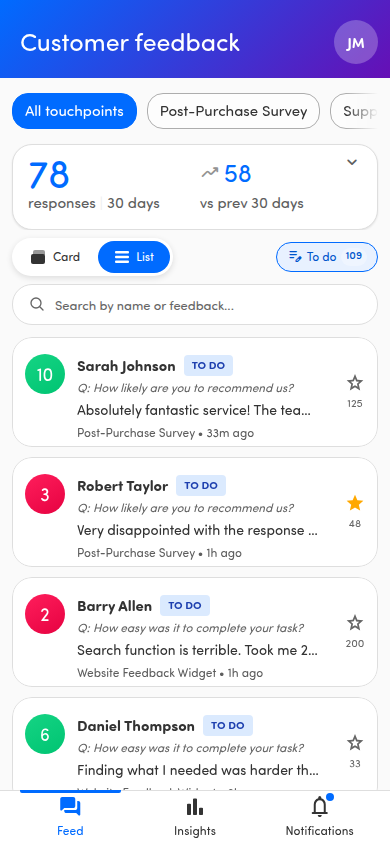
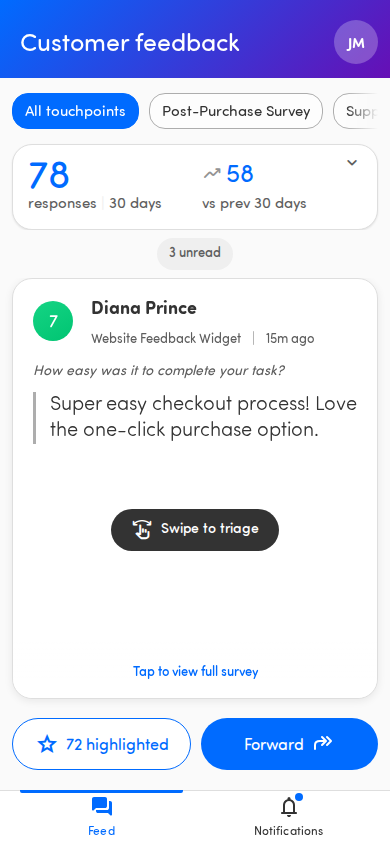
With Close the Loop, the Feed gives you two ways to look at your feedback: Card view and List view. The toggle buttons read Card and List. Here’s when to use each.
ℹ️ Available with the Close the Loop add-on. If you don’t see the reply options described here, your organization hasn’t enabled this feature — ask your administrator.
Switch between views
Section titled “Switch between views”At the top of the Feed, tap Card or List to switch between the two views.
- Card view is the swipeable card stack. It’s the default, and the only view available without Close the Loop.
- List view shows your conversations as a compact, scrollable list. It exists only when Close the Loop is enabled.
ℹ️ The two views don’t show exactly the same set of items. Card view walks you through feedback you haven’t viewed yet, while List view opens showing To do conversations from the last 30 days — tap the To do filter to turn it off and see everything. Switching views also clears any search you had typed.
When to use Card view
Section titled “When to use Card view”Use Card view when you want to focus on one customer response at a time. Swipe through your feedback card by card, read the detail, and act on it. This view suits a calm, considered triage.
When to use List view
Section titled “When to use List view”Switch to List view when you have a lot of conversations to get through and want to scan them quickly. The list scrolls through a long set of items, so you can move fast.
Search the list
Section titled “Search the list”List view has a search bar at the top with the placeholder Search by name or feedback…. Type a customer’s name or a phrase from their response to narrow the list instantly. Clear the search to see everything again.
💡 Tip: In List view you can also swipe an item to reply or to mark it done — see Track conversation status.