

Read a full survey response
Tapping any feedback card opens the full survey response, where you can read everything the customer told you.
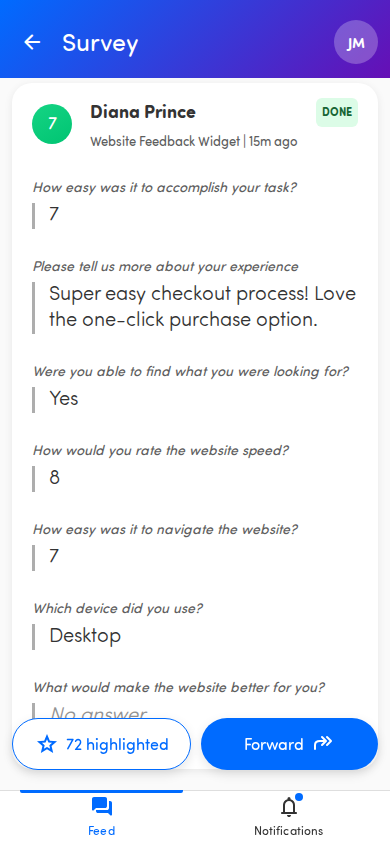
Open a response
Section titled “Open a response”From the Feed, tap a card (or, with the Close the Loop add-on, a row in list view) to open it. The screen is titled Survey. Tap the back arrow in the top-left to return to where you came from.
What’s on the screen
Section titled “What’s on the screen”At the top of the response card you’ll find:
- Score badge — the customer’s score for this response, shown in a colored circle. The color reflects how positive or negative the score is. See Understand scores and metrics.
- Name — the customer who gave the feedback.
- Touchpoint and time — the touchpoint the response came from and how long ago it was answered, for example Onboarding survey | 2 days ago.
Below that, every question the customer was asked is listed with their answer underneath. If a question was left blank, you’ll see No answer in its place.
Conversation history
Section titled “Conversation history”When anything has been sent on a conversation, a Conversation section appears below the answers so you can see where things stand before you act:
- Replies from your team — each shows who sent it (Reply sent by [Name]) and when, so you know whether a coworker already responded and what they said.
- Messages from the customer — if the customer wrote back to a reply email, their message appears too, aligned to the left.
- Autoreply — the automatic thank-you your touchpoint sent, if any.
- Summaries — internal notes a coworker wrote about the conversation ([Name] wrote a summary).
The newest reply also shows its delivery status: Sending, Sent, or Not delivered.
Everyone who can open the response can read the conversation history. Sending a reply requires the Close the Loop add-on — see Reply to a customer.
Take action on a response
Section titled “Take action on a response”Action buttons sit pinned at the bottom of the screen:
- Highlight (star) — flag the response as important. See Highlight important feedback.
- Forward — send the response to a colleague. See Forward feedback to a colleague.
ℹ️ With the Close the Loop add-on, the buttons change: a separate star icon replaces the Highlight label, and a Reply button appears so you can respond to the customer in-app. See Reply to a customer.