Review feedback shared with you
When a colleague forwards customer feedback to you, it lands in the Notifications tab. This article shows you how to find and open it.
Open the Notifications tab
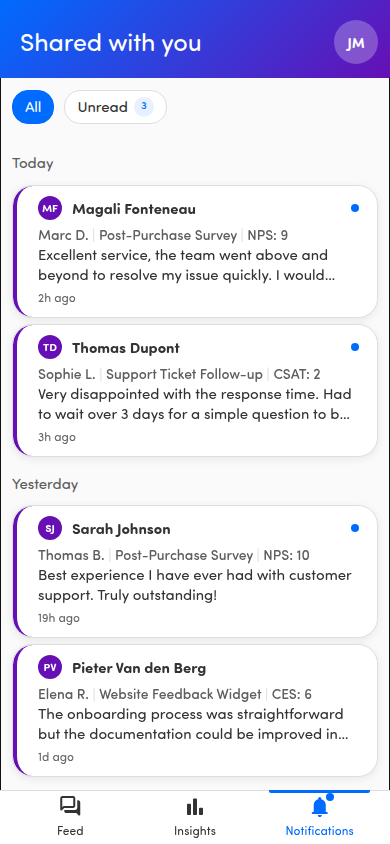
Section titled “Open the Notifications tab”Tap the Notifications tab in the bottom navigation (the bell icon). Its page is titled Shared with you and lists the feedback colleagues forward to you.
ℹ️ A planned Alerts add-on will later add automated alerts to this tab and rename it Alerts. See About alerts.
A small dot on the tab tells you there’s something unread waiting.
Filter All vs. Unread
Section titled “Filter All vs. Unread”At the top of the tab are two filters:
- All — everything shared with you.
- Unread — only items you haven’t opened yet. When you have unread items, a badge on the Unread filter shows how many.
Tap a filter to switch between them.
Browse by date
Section titled “Browse by date”Items are grouped by when they arrived, under the headers Today, Yesterday, This week, This month, Last month, and Older. The most recent feedback sits at the top.
Open an item
Section titled “Open an item”Tap any item to open its source. Forwarded customer feedback opens the full survey response, where you can read the detail and act on it. Opening an item marks it as read and clears its unread dot on the device you’re using — if you also use the app on another phone or computer, the item shows as unread there until you open it on that device too.
Refresh the list
Section titled “Refresh the list”Pull down on the list to refresh it and pull in anything new.
When there’s nothing here
Section titled “When there’s nothing here”If nothing has been shared with you yet, you’ll see an empty state:
- No shared feedback
- When colleagues forward feedback, it will appear here