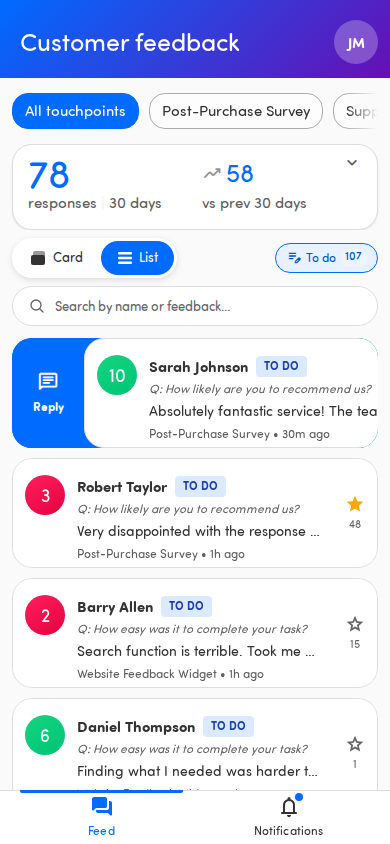
Track conversation status
Close the Loop gives every conversation a status so you and your team always know what’s been handled and what still needs attention.
ℹ️ Available with the Close the Loop add-on. If you don’t see the reply options described here, your organization hasn’t enabled this feature — ask your administrator.
The three stages
Section titled “The three stages”Each conversation carries one of three status badges:
- To do — the conversation needs attention. Nobody has acted on it yet.
- In progress — someone has started working on it, for example by sending a reply.
- Done — the loop is closed. The customer has been looked after and nothing more is needed.
Find what needs attention
Section titled “Find what needs attention”List view opens with the To do filter already switched on, so by default you only see the conversations that still need a response — outstanding work, without anything already handled getting in the way. Tap To do to turn the filter off and see everything, including conversations that are in progress or done.
Move a conversation along in List view
Section titled “Move a conversation along in List view”In the Feed’s List view, you can change a conversation’s status with a swipe:
- Swipe right to reply — opens the reply modal so you can respond. When you send, the conversation takes the status you picked in the modal — In progress unless you chose Done. (See Reply to a customer.)
- Swipe left to mark done — closes the loop and moves the conversation to Done. This action isn’t offered on conversations that are already done.
Both swipe actions need reply permission on the touchpoint — with view-only access the swipes don’t do anything.
💡 Tip: Marking a conversation Done closes the loop, so check it over before you swipe. If you’re filtering by To do, the conversation drops out of the list once it’s done.