

Browse feedback with the card stack
The card stack is the fastest way to go through customer feedback on your phone, one response at a time.
When you open the Feed, you land on the card stack: a single customer response shown front and center, with the next one peeking behind it.
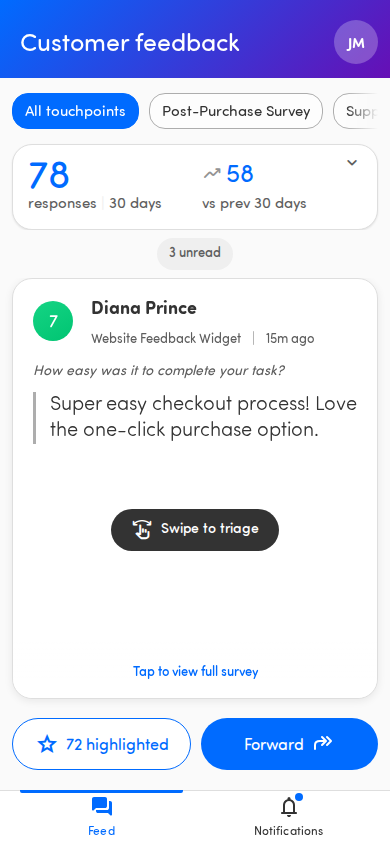
Swipe through cards
Section titled “Swipe through cards”- Swipe right to mark the card as seen and move to the next one.
- Swipe left to go back to the card you just saw.
- Tap a card to open the full survey response.
💡 The first time you open the card stack, a Swipe to triage hint appears over the card. It disappears once you start swiping, or after a few seconds. You’ll only see it once.
Use your keyboard instead
Section titled “Use your keyboard instead”If you’re on a device with a keyboard, you don’t have to swipe:
- Press the right arrow key to mark the card as seen and advance.
- Press the left arrow key to go back.
See how many are left
Section titled “See how many are left”When you have unseen feedback, a pill near the top of the Feed shows the count, for example 12 unread. As you swipe through cards, the number goes down.
The card stack loads feedback in batches. When you finish a batch and there is more unseen feedback waiting, the next batch loads automatically — you can keep swiping until you’ve really seen everything.
Empty states
Section titled “Empty states”The card stack always tells you where you stand:
- No feedback yet — there are no responses to show right now. You’ll also see New responses will appear here. New feedback shows up automatically as it arrives.
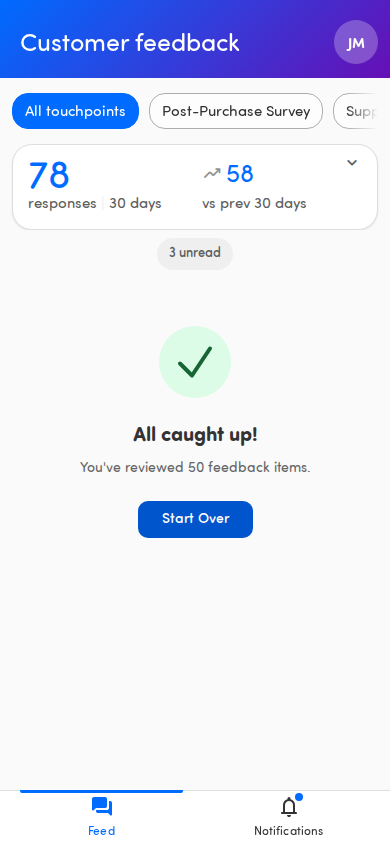
- All caught up! — you’ve seen every piece of unseen feedback. After a swiping session, the app shows how many items you reviewed and offers a Start Over button to go back through them from the beginning. You’ll also land here when you open the app again after having seen everything — then it reads You’ve viewed all available feedback. Check back later for new responses. Your viewed history is remembered across logins, and Start Over still lets you browse the cards again.
- Failed to load feed — something went wrong loading your feedback (often a connection hiccup). Tap Retry to try again.
ℹ️ Only seeing No touchpoints available? That means there’s no survey assigned to you yet. See Why can’t I see any feedback?.