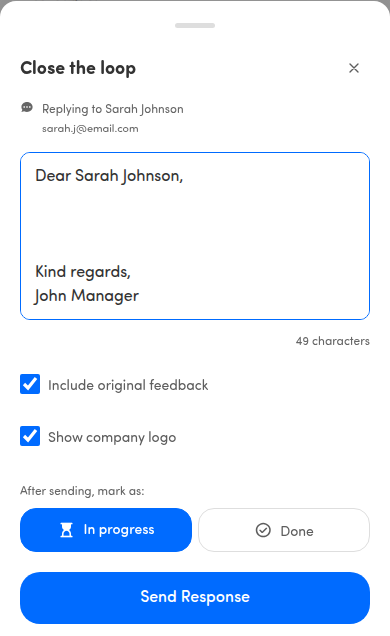
Reply to a customer
When you can reply to a customer, you write and send your response from the reply modal, without leaving the app.
ℹ️ Available with the Close the Loop add-on. If you don’t see the reply options described here, your organization hasn’t enabled this feature — ask your administrator.
Open the reply
Section titled “Open the reply”Tap Reply on a customer response. (In the Feed’s List view, you can also swipe an item to start a reply — see Track conversation status.) The reply modal opens with the title Close the loop and a line showing who you’re replying to: Replying to [Name].
ℹ️ Note: On the survey detail view, the button is labeled by where the conversation stands. It reads Continue on a conversation that’s in progress, and Reply otherwise. On a conversation that’s already Done, the button doesn’t appear.
ℹ️ No Reply button on an anonymous response? A reply is sent to the customer by email, so the button only appears when the customer left an email address. Responses without one (for example from an ask-anywhere or website survey) can still be highlighted, forwarded and marked as done. Google reviews are the exception: your reply is posted on the review itself, so no email address is needed there.
Write your response
Section titled “Write your response”Tap the compose area and type your message. A character count below the box updates as you type. For replies that go out by email, the box starts with a ready-made greeting and sign-off — Dear [Name] … Kind regards, [Your name] — with the cursor placed after the greeting; edit it as you like. Otherwise the box is empty and shows the placeholder Type your response….
💡 Tip: The compose box grows as you write, so long replies stay easy to read.
Start from a reply template
Section titled “Start from a reply template”If your organization has set up reply templates for the touchpoint, a Choose a reply template menu appears above the compose box. Tap it to see the templates, each with its name and a preview of its first line.
- Only templates that fit the customer’s score are listed. A customer who gave a 9 or 10 sees different templates than one who gave a 3, for example.
- Templates appear in the customer’s language when a translation exists, otherwise in the template’s main language.
- Tap a template to put its text in the compose box. The customer’s name and other details are filled in for you, and the menu now shows the template’s name.
- Choosing a template replaces everything in the compose box, including the greeting. Open the menu again and pick another template to switch.
- The text stays fully editable, so you can adjust it before sending.
Templates are created and managed in the Hello Customer platform on desktop. The app only shows them. You won’t see any templates when none fit the customer’s score, when the response has no score, or while your device is offline. Reply templates are being rolled out gradually, so they may not be available for your organization yet.
Generate a reply with AI
Section titled “Generate a reply with AI”If AI replies are turned on for the touchpoint, a Generate AI response button appears at the bottom of the compose box.
- Tap Generate AI response.
- Pick a tone:
- Formal: polite and neutral, addresses the customer by their full name.
- Casual: warmer and shorter, uses their first name.
- While the draft is being written, the button reads Generating… and the compose box is locked so nothing you type gets overwritten.
The draft replaces everything in the compose box. It’s written in the customer’s language. If you picked a reply template first, the AI uses it as a style reference. The draft stays fully editable, and you can generate again with either tone to replace it with a new one.
If generating fails, you’ll see AI generation failed. Use a template or type manually. below the compose box, and your text is kept as it was. Pick a reply template, try generating again, or write the reply yourself.
AI replies are switched on per touchpoint in the Hello Customer platform on desktop. The button doesn’t appear while your device is offline. AI replies are being rolled out gradually, so they may not be available for your organization yet.
Set email options
Section titled “Set email options”When your reply will be sent to the customer by email, two extra options appear:
- Include original feedback — adds the customer’s original response to the email so they have the context.
- Show company logo — includes your company logo in the email.
Both are on by default; tap either to turn it off.
Choose what happens to the status
Section titled “Choose what happens to the status”Above the send button, an After sending, mark as: toggle lets you pick the status the conversation gets once your reply is sent: In progress or Done. In progress is preselected (on a conversation that was already done, Done stays selected). The status only changes because of what you pick here — see Track conversation status.
Send it
Section titled “Send it”Tap Send Response to send your reply. (The send button and status toggle only appear if you have reply permission for the touchpoint — with view-only access you can read the conversation but not send.)
- While it’s sending, the button reads Sending….
- If something goes wrong, you’ll see an error and the button changes to Retry — tap it to try again.
When the reply goes through, the modal closes and the conversation updates.
See what was sent
Section titled “See what was sent”Your reply appears right away in the Conversation section of the survey page, with your name and a delivery status — so you and your coworkers can always see who replied and what was said before replying again. See Read a full survey response.
In the Feed’s List view, conversations that already have a reply show a small chat icon next to their status, so you can spot them without opening each one.
Status banners
Section titled “Status banners”If the conversation already has a status, the reply modal shows a banner at the top:
- This conversation is in progress
- This conversation is marked as done
See Track conversation status for what each stage means.