

View your access and permissions
Settings shows what you can see and do in the app: which touchpoints you have access to, and whether you can reply to customers.
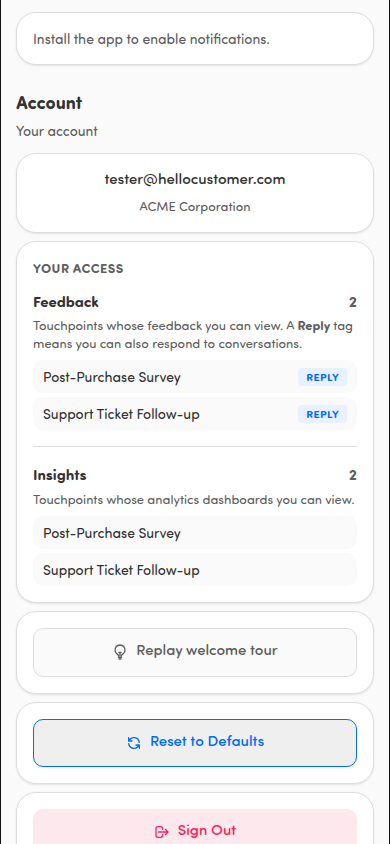
Open your access details
Section titled “Open your access details”- Tap your avatar in the page header to open Settings.
- Your email and organization appear near the top. Your access is listed below them under Your access.
If you’re an administrator
Section titled “If you’re an administrator”If you have full access, you’ll see an Administrator badge with Full access to all touchpoints. That means every touchpoint in your organization is available to you.
If you have specific access
Section titled “If you have specific access”Otherwise, your access is broken down into lists:
- Feedback — the touchpoints whose feedback you can view, with a count. The app notes: Touchpoints whose feedback you can view. A Reply tag means you can also respond to conversations.
- Insights — if your organization has the Insights add-on, the touchpoints whose dashboards you can view, with a count.
If a list has nothing in it, it shows None.
What the Reply tag means
Section titled “What the Reply tag means”Next to a touchpoint in the Feedback list, a Reply tag means you can also respond to those customers, not just read their feedback. Without the tag, you can view the feedback but not reply. Replying also requires the Close the Loop add-on.
ℹ️ If you see No touchpoints available. Contact your administrator if this is unexpected. here, you don’t have access to any touchpoints yet. See Why can’t I see any feedback?.