

Forward feedback to a colleague
Spotted feedback someone else needs to see? Forward it to a colleague, or share it through any app on your phone.
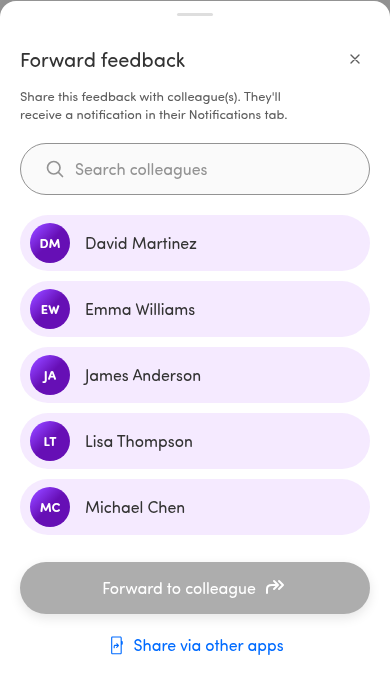
Forward to a colleague
Section titled “Forward to a colleague”- On a feedback card or an open survey response, tap Forward.
- The Forward feedback sheet slides up. Below the title it explains: Share this feedback with colleague(s). They’ll receive a notification in their Notifications tab.
- Start typing in the Search colleagues box to narrow the list, or scroll to find people.
- Tap one or more colleagues to select them. Selected colleagues are marked with a check; tap again to deselect.
- Tap the forward button at the bottom and you’re done.
The forward button updates to match your selection:
- No one selected: Forward to colleague (the button stays inactive).
- One person: Forward to [first name].
- Several people: Forward to [n] colleagues.
💡 The colleague you forward to finds it in their Notifications tab (page titled Shared with you). See Review feedback shared with you.
If forwarding partly fails
Section titled “If forwarding partly fails”When you forward to several colleagues and some sends don’t go through, the app tells you how many succeeded — for example “Forwarded to 2 of 3 colleagues. Tap forward to retry the rest.” Only the colleagues who didn’t receive it stay selected, so tapping the forward button again retries just those — nobody gets the same feedback twice.
Share via another app
Section titled “Share via another app”Need to reach someone who isn’t a colleague in the app, or want to drop the feedback into chat or email? Tap Share via other apps at the bottom of the sheet.
This opens your phone’s share menu with a short summary and a link to the full response. If your phone can’t show a share menu, the app copies the same text to your clipboard so you can paste it anywhere.